
22 October 2026
How to film concerts on a phone: zoom, exposure and video settings
Practical phone tips for bright stages and distant seats: choose a usable zoom, protect highlights, steady your clips and prepare storage before an overseas show.
Why concert footage is harder than ordinary travel video
A concert combines moving performers, dark surroundings, bright screens and sudden lighting changes. A clip that looks good on the phone at full brightness may reveal shaky framing or blown-out faces when played back later. Distance adds another challenge: zoom magnifies your hand movement along with the stage. Overseas shows add travel logistics too. Coldplay's Hong Kong run at Kai Tak Stadium on 8–9 and 11–12 April 2025 and BLACKPINK's Tokyo Dome shows on 16–18 January 2026 are real examples of stadium and dome trips. They are not evidence that filming was allowed, nor a forecast of conditions at your next concert.
Before you press record: confirm filming is permitted
Check the organiser's current recording policy, ticket terms and venue entry restrictions. Permission to carry a phone is not the same as permission to record. Stop filming if staff ask, and do not use restricted camera accessories. Published clips from other fans are not a substitute for the rules for your own show.
Start with 30 fps, then test what the phone can handle
For a simple starting point, try 1080p at 30 frames per second during a practice recording. If you want more detail and have enough storage, try 4K at 30 fps and compare the results on the actual phone. Treat these as starting points, not universal concert presets. 60 fps can make movement look smoother, but it can require more light and uses more storage depending on the recording settings. In a dim scene, it may not be the better choice. Check the result rather than choosing the highest resolution and frame rate automatically. Available modes and behaviour vary by device.
Keep the performer visible without washing out the lights
Tap the performer or stage area to set focus. If the phone exposes for the dark audience and makes faces or screens look white, lower the exposure gradually using the camera's available control. Aim to retain detail in the bright subject; the crowd does not have to be fully visible. Where the phone supports focus or exposure locking, test it before the concert. Locking can reduce distracting changes, but you may need to release it when the performer moves or lighting changes significantly. There is no reliable universal exposure value for every stage.
Use a sensible zoom, not the highest number
Try the phone's built-in camera choices before extending the zoom further. Some phones switch lenses or combine optical and digital processing depending on light and recording mode, so do not assume every displayed zoom step is purely optical. From a distant seat, a steady medium view of the performer and stage can be more watchable than an unstable extreme close-up. If the image becomes soft or noisy, reduce zoom. For close seats, a wider frame may better capture choreography. Choose one composition and let the performance happen inside it rather than continually zooming in and out.
Steady framing beats constant movement
Hold the phone with both hands when practical, keep your elbows close and use the normal video stabilisation setting you have tested. More aggressive stabilisation can crop the view or behave differently in low light. Avoid changing modes in the middle of a favourite song. Keep the phone near your own eye level instead of holding it high over the people behind you. Lower screen brightness enough to avoid distracting neighbours, switch off the flash and capture selected moments rather than watching the entire show through a screen.
Do not rely on photo Night mode for moving performers
Night mode photos can use longer capture times. That can help a still scene but leave fast-moving performers blurred. For action on stage, try the normal photo mode and take a few carefully timed shots instead of assuming Night mode is best because the venue is dark. Apple's Night mode guidance explains that capture can take several seconds and recommends holding still. That illustrates the trade-off; controls and processing on a rented Android phone may differ.
Protect the sound as well as the picture
Keep fingers away from the phone's microphones and check audio in a short test clip. Loud speakers can overload a phone recording; digital volume reduction afterwards will not repair audio that clipped during capture. If your phone has manual audio controls, test them beforehand rather than experimenting during the show. Do not add a microphone or recording accessory unless the event permits it. A phone recording is a personal memory, not a guaranteed clean live mix.
Storage, battery and backups matter on an overseas trip
Charge before leaving for the venue, check free storage and record a test clip at your chosen setting. Higher-resolution footage can fill storage quickly; exact file sizes depend on the phone and format. Verify the venue's rules before bringing any charging accessories. After the show, copy your clips to your own device or trusted cloud storage and confirm they actually play. Allow time to transfer them before returning the rental. Follow the studio's return instructions for removing personal accounts and data.
Which phone should I rent for concert videos?
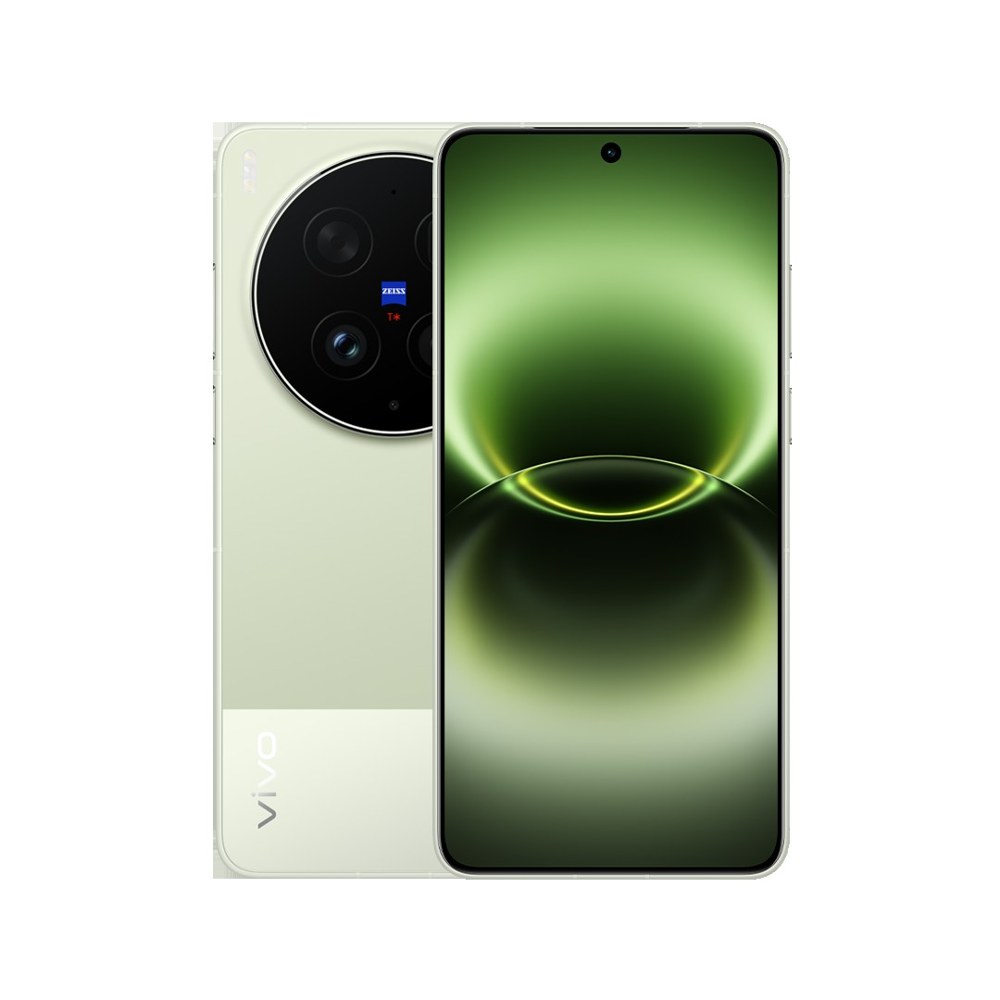
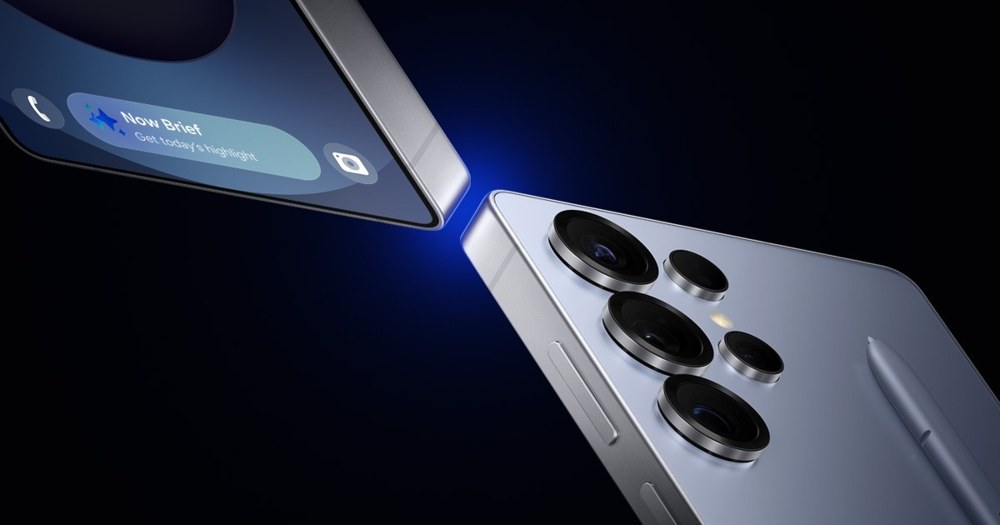
Start with your seat area, preferred framing and familiarity with the controls. Arkework's current listings include Samsung S25 Ultra 512GB, Samsung S26 Ultra 512GB and Vivo X300 Ultra 512GB. Compare their listed specs and ask about suitability for your dates; no phone guarantees clear close-ups from every seat. The listing cards below show current one-day rates rather than an estimate for your whole trip.
Can I take an Arkework rental phone to an overseas concert?
Yes, local renters can take rented equipment overseas with no surcharge or additional deposit. Foreign tourists taking equipment out of Singapore are subject to additional deposit terms and travel-plan review. Share your full trip dates and check the specific concert's recording rules before booking.
Plan your rental around the entire trip
Read https://arkework.com/blog/overseas-concert-phone-rental-singapore for travel dates, collection windows and overseas rental terms. Browse https://arkework.com/concert-camera-rental-singapore to choose gear, then send your request on WhatsApp for availability and exact pricing. Payment confirms the booking; submitting a request alone does not reserve a phone.
Sources and further reading
Coldplay Hong Kong event dates: https://shows.cityline.com/en/2025/musicofthespheresworldtour.html BLACKPINK Tokyo event dates: https://www.tokyo-dome.co.jp/en/dome/event/artist/ Apple Night mode guidance: https://support.apple.com/en-us/102519 Apple video settings guidance: https://support.apple.com/guide/iphone/change-video-recording-settings-iphc1827d32f/26/ios/26 Google Pixel video and stabilisation guidance: https://support.google.com/pixelcamera/answer/7064897?hl=en Manufacturer links explain general filming controls; they do not establish venue permission or identical features on every rental phone. Historical concert dates checked on 22 October 2026.
Featured gear
Ready to rent?
Browse the gear, build your request list and send it to us on WhatsApp. We'll confirm availability and the exact price for your dates.